On this page
USB-C looks like one standard, but the plug is the only part that is truly universal. Behind that oval connector, chargers and cables vary a lot in how much power they carry and how they negotiate it. Buy the wrong pairing and your laptop charges slowly, your phone runs warm, or a cable quietly refuses to pass the power its label promised. This guide explains the few numbers and markings that matter so you can match a charger and cable to your devices without guessing.
Start with wattage, not the brand
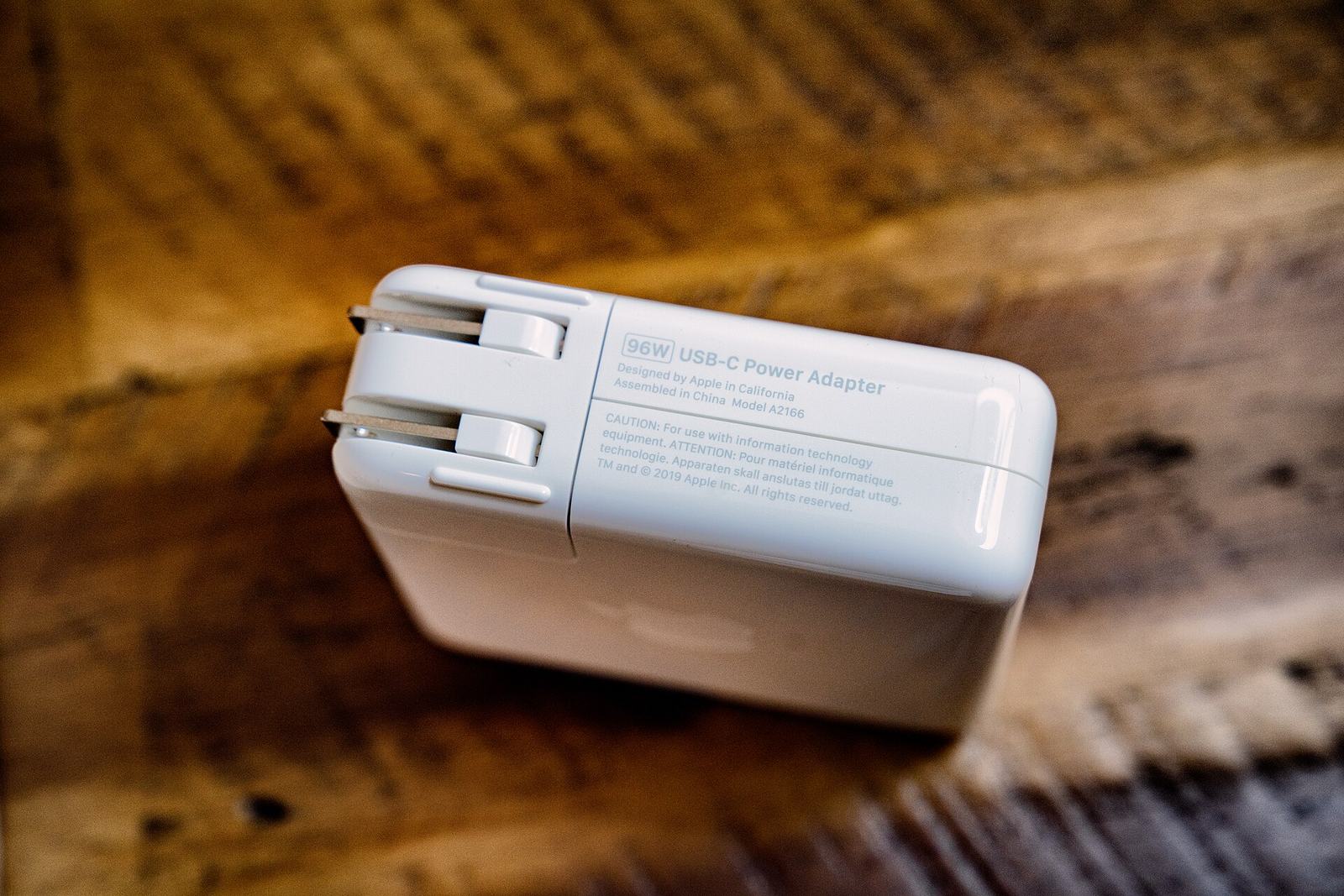
Wattage is the ceiling on how fast a charger can deliver power. A phone is happy with a 20 to 30 watt charger. A tablet or a small laptop usually wants 30 to 65 watts. A larger laptop may ask for 90 watts or more. The charger will never force more power than a device accepts, so a higher-wattage charger is safe for a phone; it simply has headroom to spare. The reverse is the problem: a 20 watt charger plugged into a hungry laptop will trickle in power or not keep up under load.
Check the power rating printed on your device or its original charger, then buy to match or slightly above. If you want one charger for several devices, size it for the most demanding one. A single 65 watt charger covers a phone, a tablet and most thin laptops.
What Power Delivery does
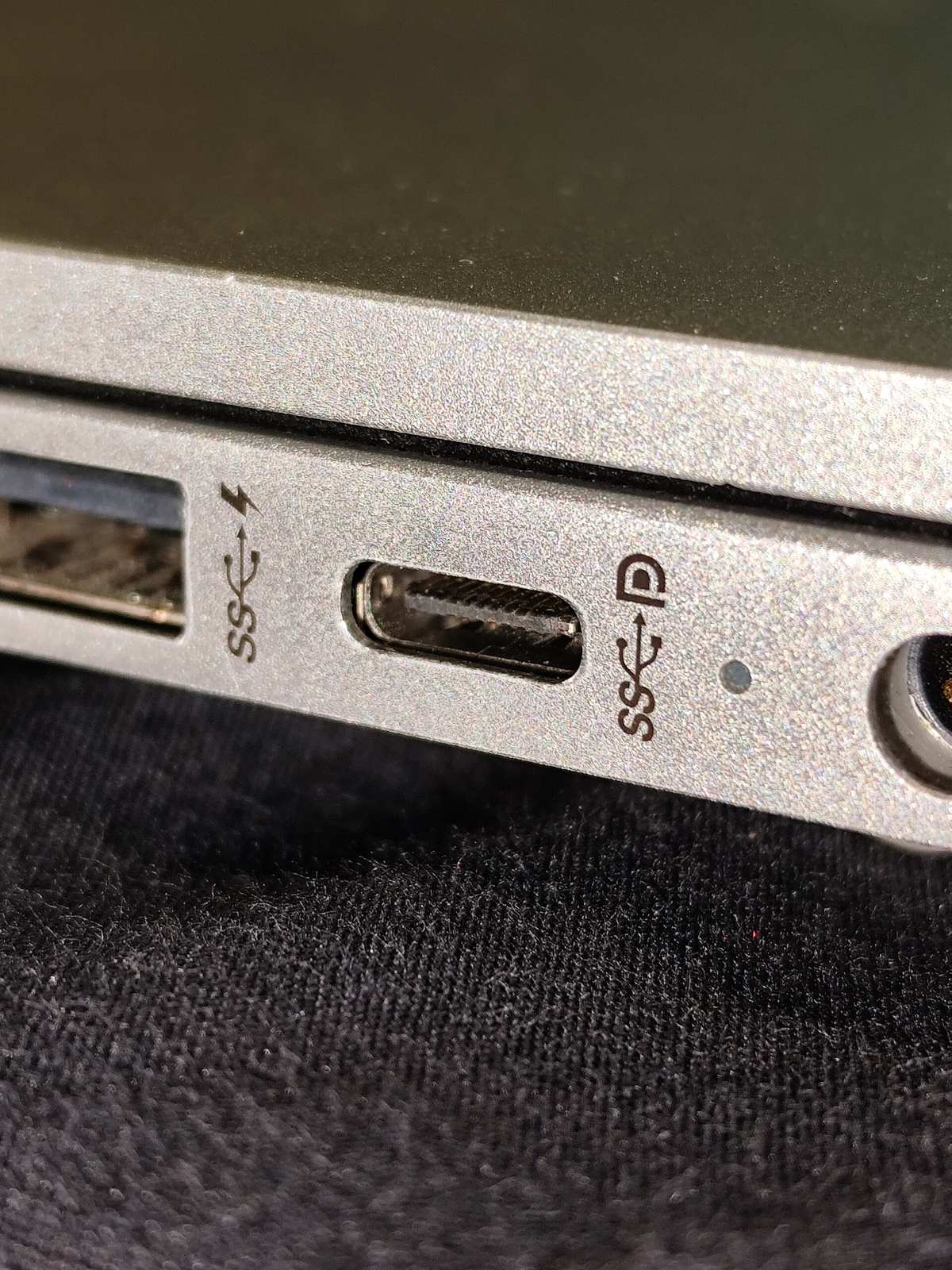
Power Delivery, usually written as PD, is the agreement two devices use to settle on a safe voltage and current. When you plug in, the charger and the device talk for a fraction of a second and pick a profile they both support. This is why the same charger can give a phone one level of power and a laptop another. Without PD, a USB-C charger falls back to a slow basic rate.
For fast charging to work, the charger, the cable and the device all need to support PD. If any one of them does not, you drop to the slow fallback. Newer chargers may also list PPS, an extension of PD that lets the voltage adjust in small steps. Some recent phones charge faster and run cooler with PPS, so it is worth having if your phone asks for it, but it is not essential.
Why the cable matters as much as the charger
A USB-C cable is more than a wire. It carries a rating for how much current it can handle, and higher-power cables contain a small chip that tells the charger what they can safely pass. A thin cable meant for a phone may be rated for 60 watts (3 amps). Cables built for laptops are rated for 100 watts or more (5 amps) and contain that extra chip. Use a 60 watt cable with a 100 watt laptop and the system correctly limits itself to the cable, so charging slows down.
- For a phone or earbuds, almost any quality USB-C cable rated for 60 watts is fine.
- For a laptop that needs more than 60 watts, look for a cable marked 100 watts, 140 watts, or 5A.
- If you want to move data quickly as well, check for a USB speed rating; many charging cables carry power well but transfer data slowly.
Reading certifications and markings
Certification is the closest thing to a safety guarantee you can check before buying. It tells you an independent body tested the product against a published standard rather than trusting the seller alone.
| Marking | What it signals |
|---|---|
| USB-IF Certified | The product passed testing by the group that defines USB, including PD behaviour. |
| Wattage or amperage printed on the shell | The maker states a real limit you can match to your devices. |
| Regional safety mark (such as UL, CE or UKCA) | The charger meets electrical safety rules for its market. |
| Cable e-marker (5A or 100W+) | The cable can safely carry high-power laptop charging. |
Putting it together
Find your most demanding device
Read the wattage on its original charger or in its manual. That number sets the size of charger to buy.
Pick a charger that meets or beats it
Match the wattage or go a little higher. Confirm it lists Power Delivery and a safety mark.
Match the cable to the job
A 60 watt cable for phones and small devices, a 100 watt or 5A cable for laptops. Check the printed rating.
Test and feel
Charge the device once and check it reaches its expected speed and does not run unusually hot. Warmth is normal; heat you cannot comfortably hold is not.
You do not need to memorise the whole USB-C specification. Match the wattage to your hungriest device, make sure the charger and cable both support Power Delivery, and check for a certification mark. Get those three right and the oval plug finally behaves like the single standard it looks like.
Photo credits
- Photo: Tony Webster from Minneapolis, Minnesota, United States / Wikimedia Commons, CC BY 2.0
- Photo: Logant547 / Wikimedia Commons, CC BY 4.0
Written and edited by EasyGuides Editors. See our editorial standards.